Cart
0
Complete Your Setup




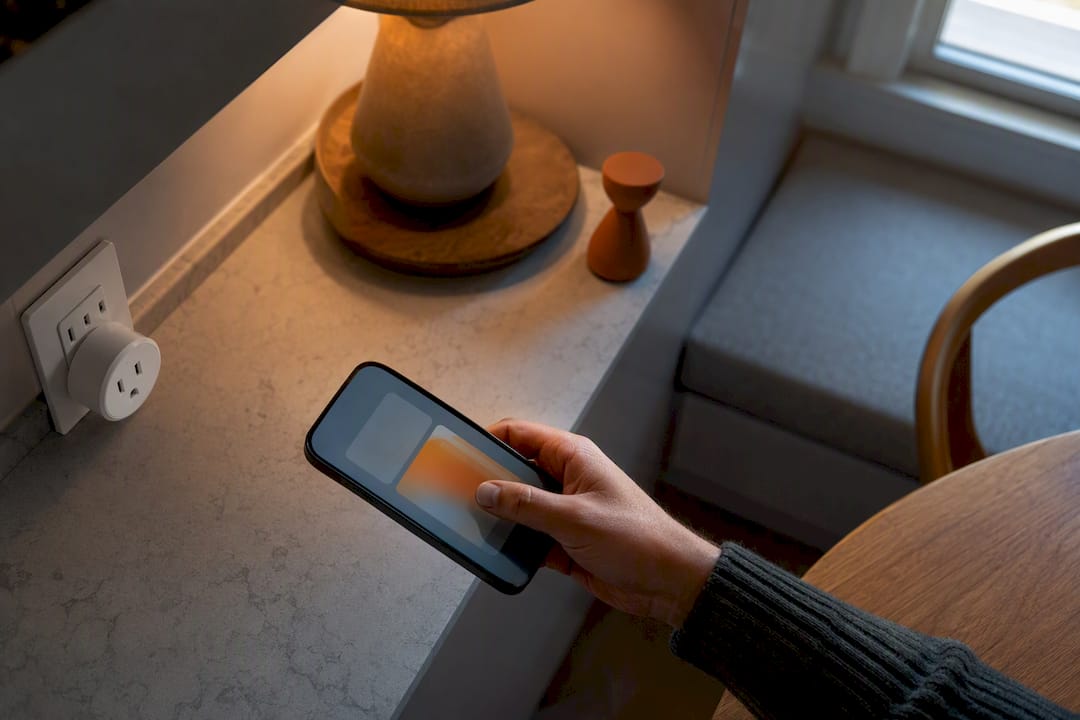
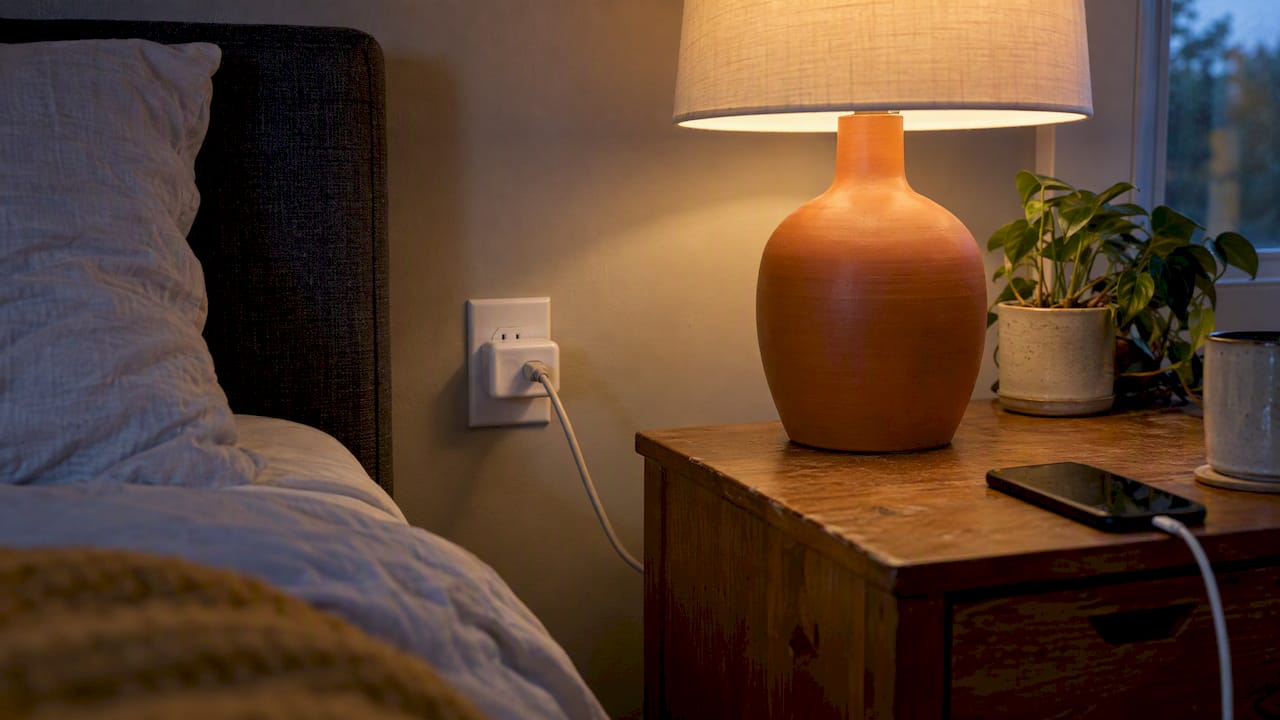
Yes, smart plugs support schedules, timers, and away modes right from their companion app or a voice assistant. The basic flow is simple: pair the plug, open the app or routines menu, pick a time or trigger, choose ON or OFF, then save and repeat. Just double check your timezone and keep the plug connected to Wi-Fi so the schedule runs the way you expect.
TL;DR:
- Most smart plugs support schedules that can be set for specific times, sunrise, or sunset, but some platforms require separate routines for turning devices on and off.
- A common cause of schedule failures is inaccurate time zone settings or issues with Daylight Saving Time, especially if the device is offline during the clock change.
- Using a timer is preferable for one-off, short-duration actions, while schedules are best for recurring daily or weekly routines.
- Building reliable automations depends on basic habits like confirming firmware updates, naming devices clearly, and testing schedules manually beforehand.
- Grouping multiple plugs and verifying that your device stays online and connected to the correct Wi-Fi band can prevent many scheduling issues.
Before you open the app, run through a quick prep list. It saves you a second trip back to the setup screen.
That is the whole process, and most people finish it in under two minutes once the plug is paired. A How-To Geek walkthrough for Alexa routines follows this same pattern: open More, tap Routines, create new, pick Schedule under “When this happens,” set the time, then add the smart home action and choose the device and toggle.
One detail trips people up: some platforms need a separate routine for turning a plug on and another for turning it off, rather than one schedule handling both. If your coffee maker turns on at 6:00 AM but never shuts off, check whether you built two routines or just one.
Use a timer when you need a short, one-time action, like shutting off a space heater in 30 minutes. Use a schedule when you want the same action to repeat daily or on specific days. Digital Trends’ guide to Amazon Smart Plug timers makes this distinction clear: timers handle short, single-use tasks, while schedules and routines handle recurring automation.
Pro Tip: Test a new schedule by fast-forwarding your phone’s clock a few minutes, or just wait for the next trigger, so you catch a setup mistake before it costs you a missed alarm or a warm coffee pot.
Different situations call for different schedule types. Matching the right one to the task keeps your automations simple and reliable.
Picking the right type up front means fewer edits later, and it keeps your app’s routine list from turning into a tangle of one-off rules.
Most platforms organize scheduling the same general way, even if the menu names differ. You will typically find this feature under Routines (Alexa), Automations (Google Home), or Schedule and Timer sections inside a vendor’s own app, like Tapo or Wyze.
Vendor apps tend to bundle Schedule, Away Mode, and Timer into one screen, which makes it easier to switch between short-term and recurring automations without hunting through menus. Voice assistant apps, by contrast, often mix plug schedules in with lighting, thermostat, and speaker routines, so naming your devices clearly really pays off when you are scrolling through a long list.
These three tools solve different problems, and mixing them up leads to a plug that behaves unpredictably.
Away mode usually pauses or overrides other schedules while it is active, so check your app before assuming a regular routine still applies during a trip. If you only need one-time control and don’t want to build a full routine, a basic mechanical timer can still be a fast, low-tech backup for simple appliances.
Daylight Saving Time is the single most common reason a smart plug schedule suddenly runs an hour off. According to SlashGear’s review of a budget Wyze plug, this happens when a device is offline during the transition or its firmware doesn’t handle the time change cleanly.
To avoid the disruption, confirm your plug is online and your app is updated in the days before a clock change. Sunrise and sunset triggers sidestep the problem entirely since they shift naturally with daylight rather than sticking to a fixed clock time. If a schedule still runs wrong afterward, resave it, power-cycle the plug, and double check the timezone setting in your account.
Pro Tip: Set a phone reminder for the week of a Daylight Saving Time change so you can verify your schedules before they misfire, not after.
Most schedule failures come down to one of a few common culprits. Work through these in order before assuming the plug is defective.
Pro Tip: Reserving a fixed IP address for each smart plug through your router settings stops a surprising number of “device offline” errors before they start.
A few small habits make the difference between a schedule that runs for years and one you’re constantly troubleshooting. Start with this six-point checklist: confirm power, confirm stable Wi-Fi, give the plug a clear name, place it within solid router range, update firmware, then test the toggle manually before scheduling anything.

Older plugs often only support 2.4GHz Wi-Fi, so connect to that band specifically if your router broadcasts both 2.4GHz and 5GHz under the same name. Naming devices clearly, like “Kitchen Coffee Maker” instead of “Plug 3,” also prevents mix-ups when you’re scheduling several plugs at once. For a fast walkthrough with setup tips built around these habits, our smart plug scheduling guide covers the same process with product-specific notes.
Most advice on smart home scheduling overcomplicates a task that should take two minutes. Readers get pointed toward elaborate multi-condition automations before they’ve even confirmed their plug stays online overnight, and that’s backwards. Reliability comes first, and reliability is mostly about boring, repeatable habits: stable Wi-Fi, clear device names, and firmware that’s actually up to date.

The other place conventional advice falls short is Daylight Saving Time. It gets mentioned as an afterthought when it’s actually the single most predictable failure point in the entire system. If you only fix one thing after reading this, check your devices are online and updated in the days before a clock change.
Prioritize the fundamentals: pair it right, name it clearly, test the toggle manually, then build your schedule. Everything else, from away mode to grouped automations, works a lot better once that foundation is solid.
— Tony
Setup shouldn’t be the hard part. Smart plugs and smart home tech designed for simple pairing and broad app compatibility let you go from unboxing to a working schedule without wrestling with settings.
Whether you’re automating a coffee maker or setting up away mode before a trip, a reliable plug and a clear setup process get you there in minutes, not hours.
For deeper platform documentation, see Tapo’s own schedule and away mode setup guide and How-To Geek’s Alexa routine walkthrough. If your app behaves differently than described here, check the device manual that came with your plug, and consider how scheduled plugs fit into a broader home energy management approach if you’re optimizing for off-peak usage.
Yes, nearly every smart plug supports schedules through its companion app or a connected voice assistant. You pair the device, open the routines or schedule menu, then choose a time or trigger and the ON or OFF action you want.
Open the Alexa app, go to More, tap Routines, and create a new routine. Under “When this happens,” choose Schedule and set your time, then add a Smart Home action, select your plug, and choose ON or OFF before saving, following the same structure How-To Geek outlines for Alexa routines.
Pair the plug with its app, confirm it responds to a manual toggle, then open the Schedules or Routines section and create a new entry with a time, repeat days, and an ON or OFF action. Vendor apps like Tapo also support scheduling multiple devices at once if you want to apply the same routine to a group of plugs.
Yes, most smart plugs offer a timer option separate from recurring schedules, ideal for short, one-time tasks like turning off a fan after a set number of minutes. Timers differ from schedules in that they run once and don’t repeat, unlike a daily or weekly routine.
Daylight Saving Time transitions are a common cause of schedule failures, especially if the plug was offline or its firmware wasn’t current when the clocks changed. Confirming the device is online, updating the app, and resaving the schedule usually fixes it.