Cart
0
Complete Your Setup




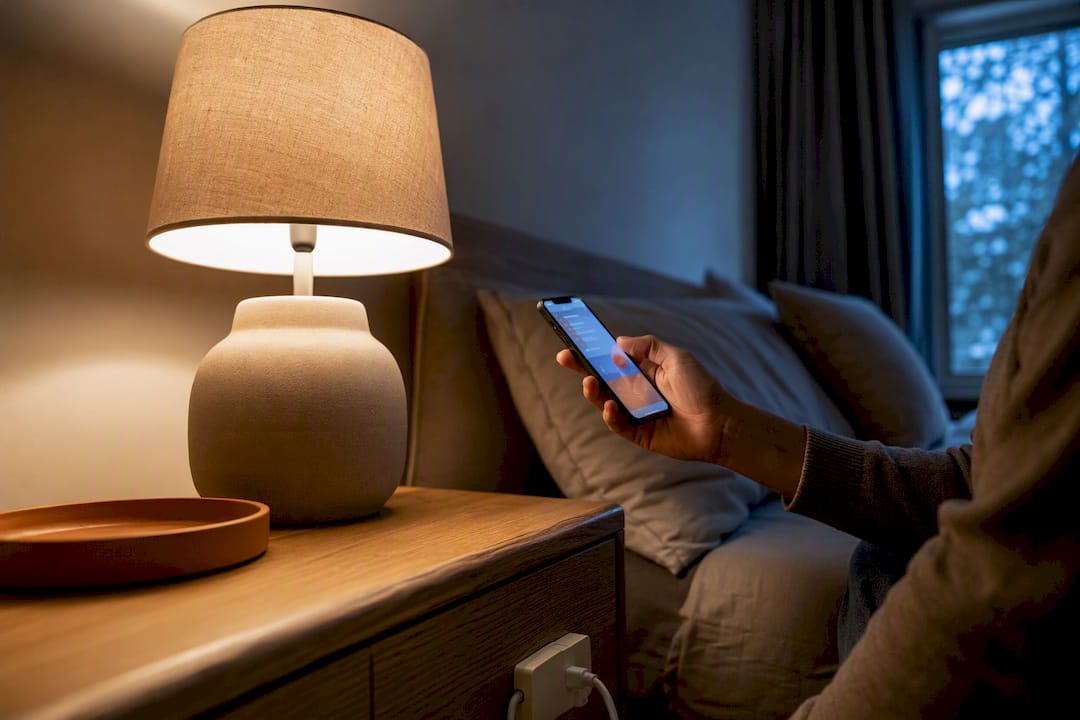
Yes, most smart plugs support full schedules, one-time timers, and an away mode, all controlled from an app on your phone. You can set a time trigger, a sunrise or sunset trigger, or a repeating weekly pattern, then pair it with an on or off action for one plug or a whole group of devices. The sections below walk through the exact steps, real examples like a bedside lamp or a space heater, and quick fixes for the schedules that stop working.
TL;DR:
- Most smart plugs can support multiple schedules, including specific times, sunrise/sunset triggers, and repeating patterns, with setup taking less than two minutes.
- Grouping devices or creating automations allows controlling several plugs simultaneously, but all devices must be online at trigger time for routines to execute reliably.
- Timers differ from schedules by providing one-off, countdown-based control, while schedules are recurring and tied to specific triggers or times.
- Sunset and sunrise triggers are preferable for outdoor and security lighting, especially when combined with offsets, to match natural light changes accurately.
- Schedule failures often result from offline devices or incorrect time zone settings; re-creating schedules after firmware updates or resets can resolve persistent issues.
Setting up a smart plug schedule takes less than two minutes once you know where to look. Almost every app, from Kasa to Tapo to Shelly, follows the same basic pattern: pick the device, add an event, choose a trigger, choose an action.
Here’s the general workflow:
Vendor documentation from TP-Link confirms this same event-based structure across its Kasa and Tapo lines: build the schedule from the device page, pick a time or sunrise/sunset trigger, then assign the on/off action.
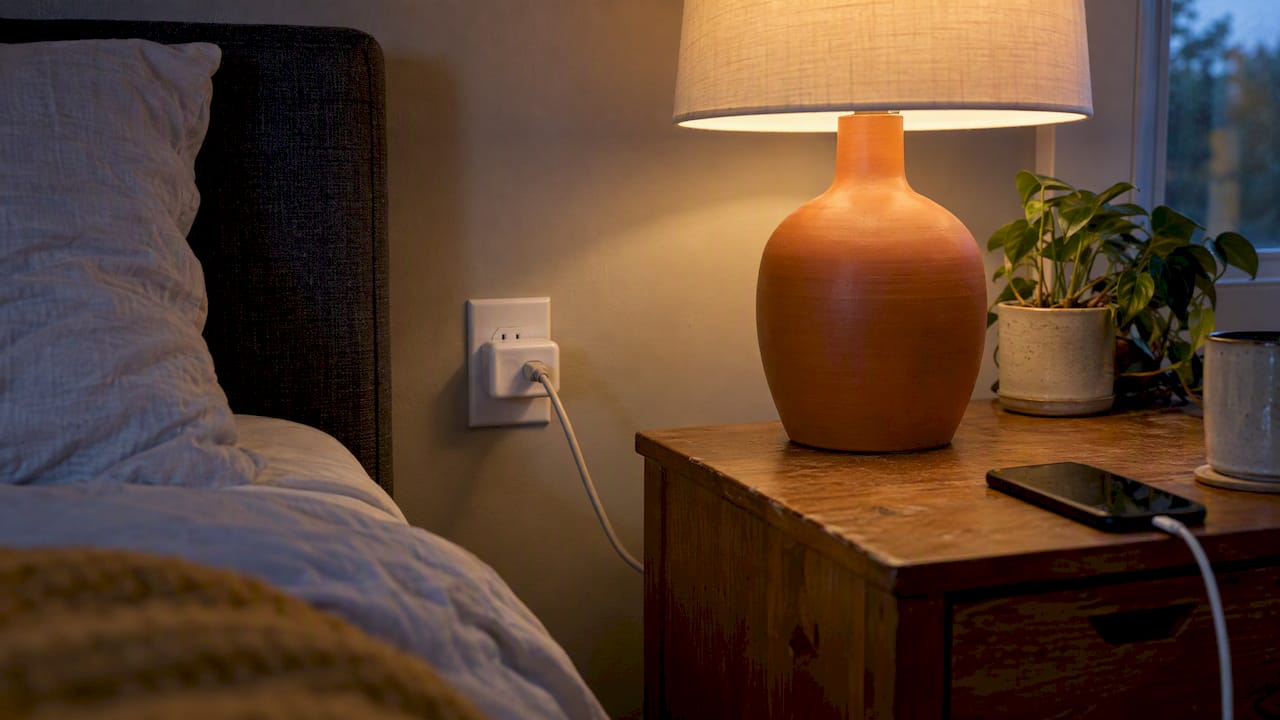
Say you want a bedside lamp to turn on at 6:30 PM and off at 11:00 PM, but only Monday through Friday. You’d create two separate events on that same plug: one ON event at 6:30 PM with weekday repeat, one OFF event at 11:00 PM with the same repeat pattern.
Editing later is just as simple. Tap the existing event, adjust the time or repeat days, and save. To pause a schedule without deleting it, most apps let you toggle the event off with a switch instead of removing it, which is handy when your routine changes for a week (a holiday, a guest staying over) but you want your normal pattern back afterward.
One schedule per plug works fine for a single lamp. It gets tedious fast once you’re managing five or six devices. That’s where groups and automations come in, and they solve the problem in two different ways.
TP-Link’s own documentation walks through both approaches for building multi-device schedules, and the logic transfers to most other wifi smart plug brands with minor menu differences.
Picture a morning routine: at 7:00 AM, your living room lamp turns on and your smart plug powered coffee maker starts brewing, all from one automation trigger instead of two separate schedules. That’s the appeal of home device scheduling done through groups: one action, several devices, zero repeated setup.
One catch worth flagging before you build anything elaborate: automations that run through the cloud generally require every device in that automation to be online and connected to your Wi-Fi network at the trigger time. If one plug drops offline, its action in that automation gets skipped, even if the other devices fire correctly.
Pro Tip: Before building a group automation, open each device’s app card and confirm it shows “Online” or a green status dot. A single offline device is the most common reason a multi-plug routine only partially runs.
A timer and a schedule sound similar but do different jobs. A timer is a one-off countdown: turn this plug off in 30 minutes, no repeat, no memory of what happened yesterday. A schedule is a recurring event tied to a specific time or trigger that repeats on the pattern you set.
Auto-off behavior, turning a device off automatically after it’s been running for a set stretch, can be built two ways:
TP-Link’s support documentation describes both methods, including using a device’s own state change as a trigger for a follow-up delay action.
A practical example: a space heater plugged into a smart plug runs for 20 minutes every time it’s switched on, then shuts off automatically, no matter who turned it on or when. That’s a real safety upgrade for a device you don’t want running unattended.
One limitation worth knowing: not every smart plug model supports native delay actions or Smart Actions. Basic entry-level plugs sometimes offer only simple daily schedules with no automation layer at all.
Fixed clock times don’t work well for outdoor lighting, since sunset shifts by more than an hour across the calendar year. Sunrise and sunset triggers solve that by tying your smart plug schedule to the actual daylight cycle instead of a static hour.
These triggers matter most for:
Most apps let you add an offset on top of the trigger, so “15 minutes before sunset” turns your porch light on while there’s still a little daylight left rather than after full dark. Shelly’s documentation shows this offset feature built directly into its scheduling interface, alongside its broader Simple and Advanced scheduling modes.
The app calculates sunrise and sunset using your phone’s location data or a manually entered address. If the times look off by an hour or more, check that location permission first. It’s the single most common cause of a sunset trigger firing at the wrong time.
Almost every “my schedule didn’t run” complaint traces back to one of a handful of causes, and none of them require replacing the device. Community troubleshooting threads for popular smart plug schedule setups keep pointing to the same two culprits: a device that was offline at trigger time, and a time zone that never got set correctly during initial pairing.
Work through this checklist in order:
A Home Assistant community thread on Kasa scheduling documents this exact pattern repeatedly: users assume it’s an app bug when the real issue is a stale time zone setting from setup.
Pro Tip: Rebuild the schedule from scratch after any firmware update. A surprising number of “phantom” missed events trace back to an old schedule that didn’t survive the update cleanly.
Scheduling is genuinely one of the easier ways to trim standby power waste around the house, since devices like chargers, lamps, and small appliances often draw a trickle of power even when technically “off.” Cutting that power entirely on a schedule, rather than leaving it plugged in around the clock, is a low-effort way to shave a little off a recurring energy bill.
Not everything belongs on a schedule, though:
Lamps, fans, coffee makers, and holiday lighting are safe, low-risk candidates for automated appliance control. Anything with a heating element or continuous-duty motor deserves a second look at its rated wattage first.
Geofencing adds a location layer on top of time-based scheduling. Instead of “turn off at 9 AM,” the trigger becomes “turn off when everyone leaves a set radius around the house,” which solves a real gap in fixed schedules: your actual comings and goings rarely match a clock.
Setting it up usually works like this: you define a geofence, a virtual boundary around your home, inside the app or a connected platform. When your phone crosses that boundary, it triggers an action on your smart plug, either directly or through a linked automation.
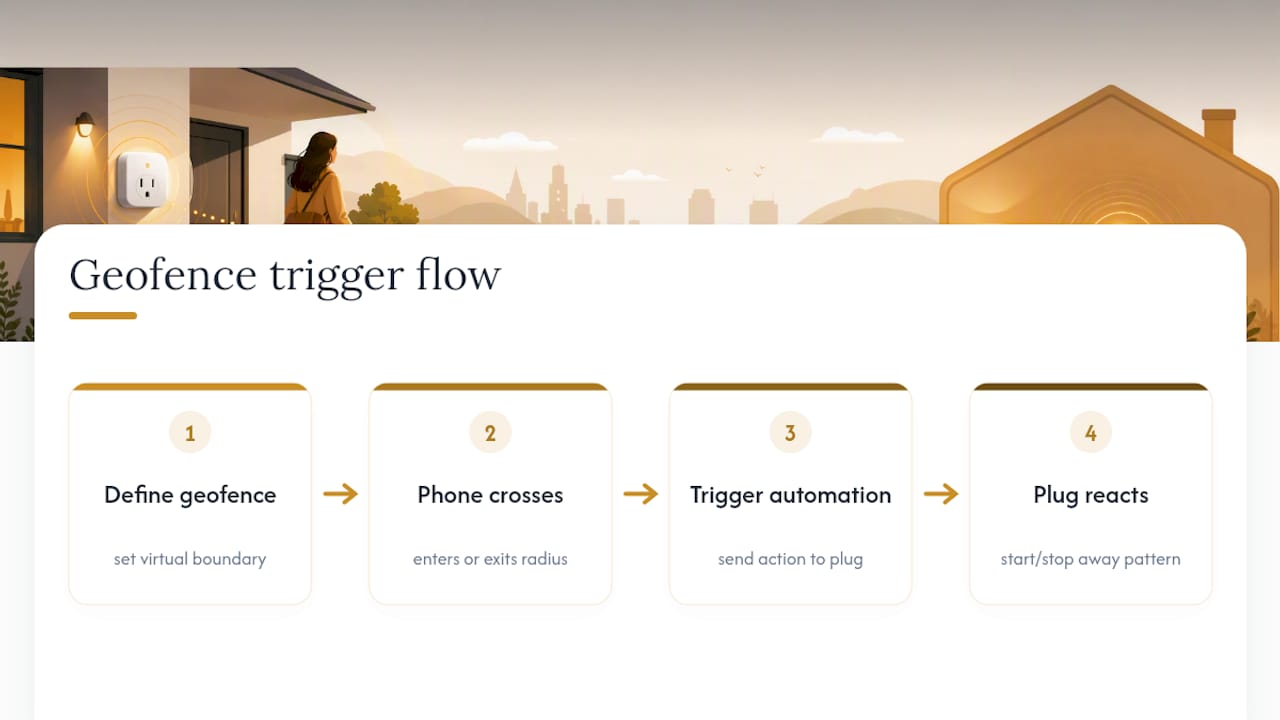
This pairs especially well with away mode. A fixed schedule might turn lights on and off at the same times every night whether you’re actually gone or not. A geofence trigger only kicks in when you’ve genuinely left, which makes the away-mode simulation feel less mechanical to anyone watching from outside.
A common setup: leaving your geofence radius triggers your lamps and TV-simulating plug to start a randomized on/off pattern, and returning inside that radius cancels it and switches everything back to your normal evening routine. It’s a smarter version of a fixed vacation schedule because it responds to where you actually are rather than guessing.
The tradeoff is battery use. Geofencing keeps your phone’s location services active in the background, which uses more battery than a plain time-based schedule. It also depends on your phone maintaining a data connection, so a dead phone battery means the trigger never fires. Treat it as a layer on top of your regular schedule, not a full replacement for it.
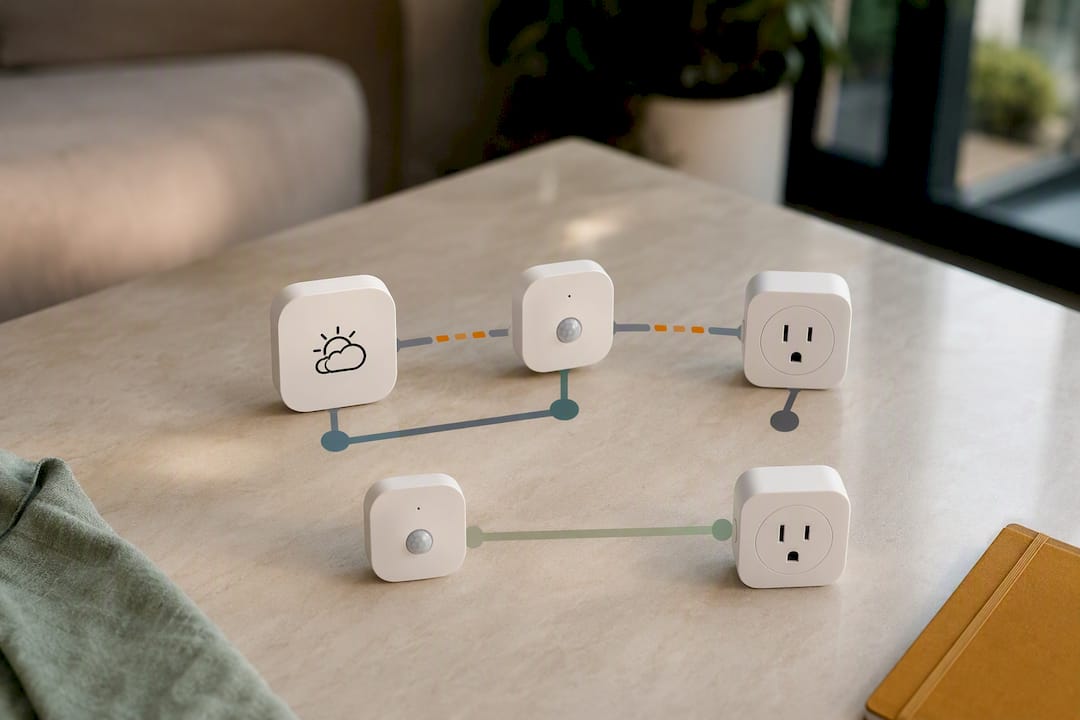
Basic schedules handle time and daylight. Conditional triggers handle everything else, weather, other device states, sensor readings, by connecting your smart plug to a broader automation platform like IFTTT or a similar rules engine.
A conditional trigger follows an “if this, then that” structure: if a specific condition is met, then the plug takes an action. That condition doesn’t have to be a clock at all. It can be another device’s state, a weather forecast, or even another smart plug’s own on/off status.
A few real-world examples worth trying:
Shelly’s device documentation shows this kind of layered logic in its Advanced scheduling mode, which supports more granular time intervals and local actions beyond what Simple mode offers.
The tradeoff with conditional automation is complexity. A basic time schedule almost never breaks unexpectedly. A conditional automation that depends on three linked services (a weather API, a sensor, and your plug) has three separate points where something can fail silently. Start with one conditional rule, confirm it works reliably for a week, then add the next one. Layering five conditional automations on day one is the fastest way to end up with a tangle you can’t debug.
Most smart plug brands build their scheduling tools mobile-first, and for good reason: you’re usually setting up or adjusting a schedule while standing right next to the device, not sitting at a desktop. The app gives you the full feature set, from basic time triggers to grouped automations and conditional rules.
Web portals exist for some platforms, but they typically lag behind the app in features. A web dashboard is often better suited to reviewing existing schedules across many devices at once, useful if you’re managing a larger smart home automation setup with a dozen or more plugs, rather than building new automations from scratch.
There’s a practical reason for this gap. Sunrise, sunset, and geofencing triggers all depend on location data that’s far easier to pull from a phone than a desktop browser. A web portal built primarily for account management or firmware updates simply doesn’t have that context readily available.
If your household splits scheduling duties between two people, check whether your platform supports shared or family accounts before you build out an elaborate routine on your own login. Losing access to edit a schedule because it lives on a single person’s phone app is a common, avoidable headache.
Not every smart plug offers the same depth of scheduling, and that gap shows up mostly at the edges rather than the basics. Nearly every brand handles a simple daily on/off schedule the same way. The differences appear once you start asking for sunrise/sunset offsets, conditional logic, or local (no-cloud) automation.
Entry-level plugs typically cover custom time triggers, basic daily or weekly repeat, and a simple away mode that randomizes on/off timing to simulate occupancy. That covers the vast majority of home use cases without any real learning curve.
Mid-range and advanced plugs add sunrise/sunset triggers with offsets, grouped scheduling across multiple devices, and in some cases local actions that keep working even if your internet connection drops. Shelly’s Simple and Advanced scheduling modes are a good example of this tiered approach, with Advanced mode supporting more granular intervals and local logic that doesn’t route through the cloud.
The practical takeaway: match the plug to the routine you actually want. A single lamp on a daily timer doesn’t need an advanced-tier device. A porch light with sunset offsets, a security-style away mode, and a backup local action if Wi-Fi drops is a different story, and it’s worth checking those specific features before you buy rather than assuming every wifi smart plug handles them the same way.
Most people over-engineer their first automation and under-use the basics. A single well-placed schedule, like an auto-off timer on a heater or a sunset trigger on a porch light, solves more real problems than a five-step conditional chain nobody remembers to check on. Start simple, confirm it runs for a week without a hiccup, then layer in complexity.
The other thing worth saying plainly: reliability beats features. A plug with fewer bells and whistles that fires its schedule every single time beats an advanced model that occasionally drops a trigger because of a shaky connection. That’s part of why some brands focus on curated, easy-to-use smart home gadgets rather than the most feature-packed option on the shelf.
Author qualifications and additional case studies to be added.
— Tony
This brand offers an alternative to hunting through a dozen confusing apps and mismatched devices by selecting gadgets picked for simple setup, so users can build schedules and routines in minutes without struggling with manuals.
If you’ve read this far, you already know what makes a smart plug worth buying: reliable schedules, real sunrise/sunset support, and an away mode that actually works. That’s exactly the bar Sabezon holds its curated Smart Home Tech lineup to, alongside kitchen and cleaning gadgets designed for the same easy, no-fuss setup. Browse the collection, pick the plugs and devices that fit your routine, and start building the automated home you’ve been putting off.
Every app has its own menu layout, so it helps to check your specific brand’s official guide once you’ve got the basics down from this article.
Yes. Nearly every wifi smart plug supports schedules through its companion app, letting you set a time or sunrise/sunset trigger, a repeat pattern, and an on/off action. Kasa’s own documentation confirms this is a standard feature across its plug lineup, and it’s typical across other major brands too.
Open the plug’s device card in its app, go to the Schedule or Automation tab, and add a new event. Choose your trigger (a specific time or sunrise/sunset), set the repeat days, then pick whether the action turns the plug on or off, and save.
Yes, and a timer works differently than a schedule. A timer is a one-time countdown, like turning a plug off in 30 minutes, while a schedule repeats automatically based on a trigger and repeat pattern you set once.
Smart plugs themselves draw a very small amount of standby power, typically a fraction of a watt. Used correctly, they tend to lower your overall electricity use rather than raise it, since scheduling cuts standby power on devices that would otherwise sit plugged in around the clock.
It depends on the type of schedule. Basic time-based schedules stored on some devices can run locally, but group schedules and automations generally need the device connected to Wi-Fi and the internet to trigger reliably, according to TP-Link’s documentation.