Cart
0
Complete Your Setup




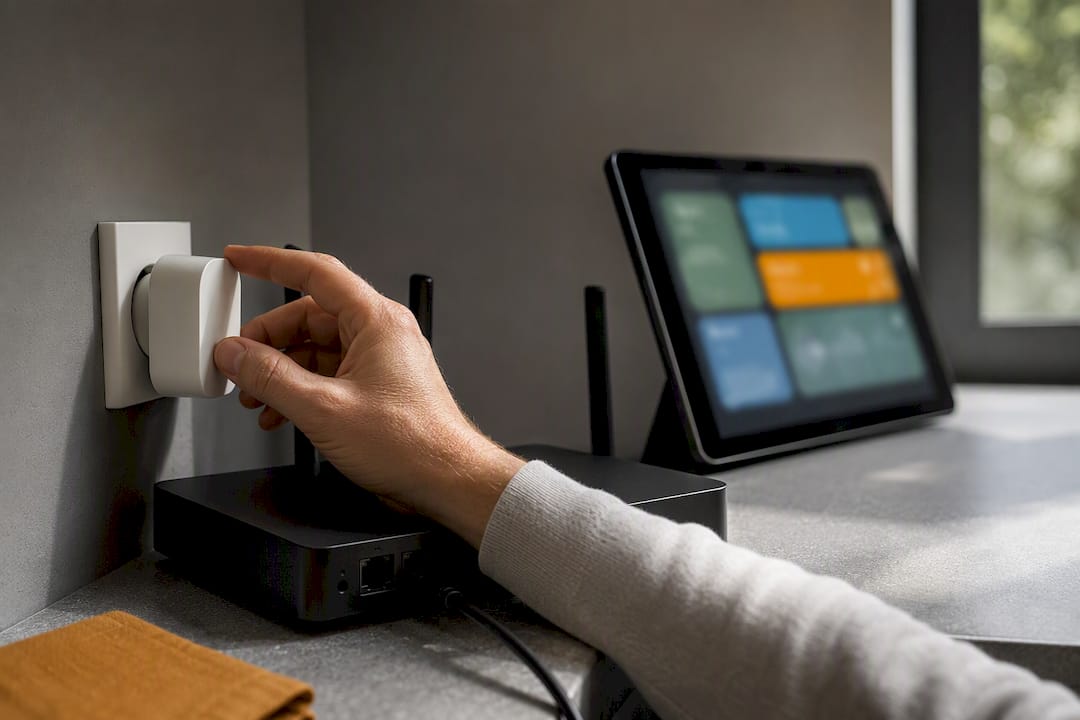
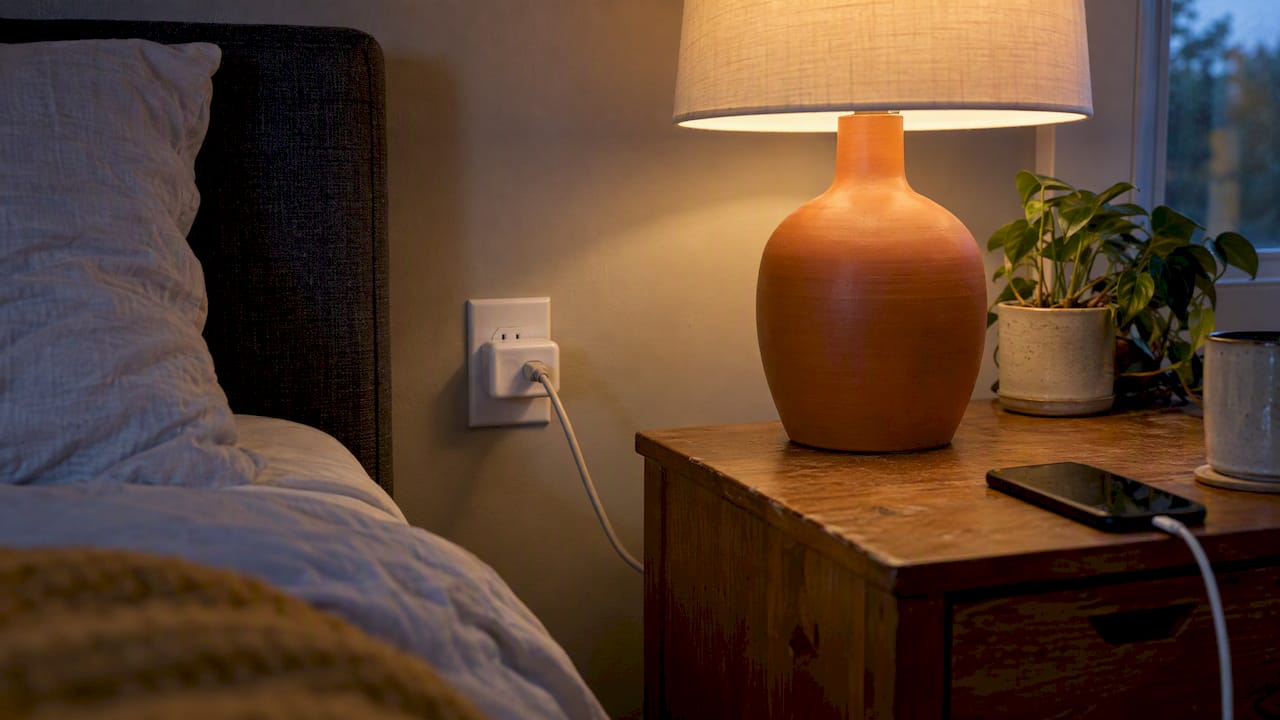
A smart plug with energy monitoring reports real-time watts and cumulative kilowatt-hours, so you can find vampire loads and diagnose failing appliances. Smart-home enthusiasts get the biggest payoff here since the value is visibility, not automatic HVAC-scale savings. ENERGY STAR sets the standby power benchmarks worth checking, and brands like Sabezon build these plugs to be simple, reliable, and easy to set up.
TL;DR:
- Energy-monitoring smart plugs that track both watts and kilowatt-hours provide the most accurate insights for identifying waste and diagnosing appliances.
- Compatibility with your existing ecosystem, especially support for Matter or local protocols like Zigbee and Z-Wave, is crucial for reliable, real-time energy data.
- Many plugs exhibit accuracy issues, such as frozen cumulative totals or inconsistent reporting, often due to firmware quirks or vendor-specific clusters.
- Using a single diagnostic plug over several days helps identify the worst energy offenders before expanding to a full home setup.
- Converting instantaneous power readings into kilowatt-hours in platforms like Home Assistant requires proper setup with integrations such as the Riemann sum helper for meaningful long-term tracking.
Every energy-monitoring plug tracks two different things, and mixing them up leads to confusing dashboards. Instantaneous power, measured in watts, tells you what a device is drawing right now. Accumulated energy, measured in kilowatt-hours, tells you how much total energy it used over a stretch of time. Both matter: watts catch a spike the second it happens, while kilowatt-hours let you calculate cost and compare days or weeks.
Most plug apps and integrations expose a handful of telemetry fields:
Sampling rate and reporting interval shape how useful this data actually is. A plug that samples once every few seconds and reports every minute gives you a smooth, believable graph. One that reports every 15 minutes will smear out short spikes, like a coffee maker’s brief heating cycle, into a misleading average.
Some budget plugs only expose instantaneous power and skip cumulative energy entirely. That is fine for basic diagnostics, catching a light left on or confirming a device is drawing current, but it means you cannot build accurate daily or monthly totals without doing the math yourself or feeding the readings into a home automation platform that calculates it for you.
Picking the right plug starts with matching it to your ecosystem, not just its price tag. Matter is quickly becoming the common language for smart home devices, including basic energy reporting, though not every Matter plug implements the energy clusters the same way. Thread, the mesh networking layer many Matter devices ride on, adds local reliability since devices talk directly to each other instead of routing everything through a cloud server.
For readers running Home Assistant, integration type determines both telemetry frequency and how much control stays local. Native integrations, built for a specific brand’s plug, often expose richer detail than a generic Matter bridge. Matter integrations are more universal but can lag behind on custom features like energy accumulation, since that depends on how the manufacturer implemented its clusters.
Cloud-first apps are the easier starting point: pair the plug, open the app, and you get a graph. Local-first devices, using Zigbee, Z-Wave, or Thread with a local hub, take more setup but keep your data off a third-party server and keep working during an internet outage. Enthusiasts and reviewers covering the ecosystem, including sites like SmartSavvyHome, consistently flag this tradeoff between convenience and control as the real decision point for buyers.
Before buying, run through this checklist:
Pro Tip: Check a plug’s product listing or manual for the specific energy units it reports before buying, since “smart” and “energy monitoring” on the box don’t guarantee kilowatt-hour tracking.
Energy readings from smart plugs are useful for trends, not lab-grade precision. A few common issues show up across brands: readings stuck at zero even though the device is clearly drawing power, cumulative energy that resets unexpectedly, or Matter plugs using custom clusters that don’t map cleanly to standard energy attributes. A Home Assistant GitHub thread documents exactly this: plugs reporting live current and power correctly while their accumulated watt-hours field sits frozen at zero, usually because of vendor firmware quirks rather than a platform bug.
Standby draw, sometimes called self-consumption, is the power a plug uses just to stay connected and responsive. Most modern plugs sit in a low range, and ENERGY STAR’s no-load power guidance sets strict maximum thresholds for qualifying devices, which is worth checking if you’re trying to minimize the monitoring tool’s own footprint.
Standby draw adds up quietly. ENERGY STAR’s specification caps no-load power for qualifying devices at a low fraction of a watt in many categories, which matters because a plug that draws more than that while idle is working against the very savings it’s meant to help you find.
Before trusting any plug’s numbers, confirm the basics: is it UL listed, what’s its maximum amp or watt rating, and is it rated for indoor use only or safe outdoors? These specs sit right on the packaging or product page and matter more than the app’s polish.
A few habits keep your data honest:
Energy monitoring only pays off when you act on what it shows you. Here’s a workflow that works whether you have one plug or a dozen:
Skip switching plugs on devices with motors or heating elements that need a controlled startup or shutdown, like some HVAC components or well pumps. Cutting power abruptly can shorten their lifespan or trip a safety fault.
To turn readings into dollars, multiply the device’s watt-hours by your utility rate per kilowatt-hour, then divide by 1,000 to get kilowatt-hours first. A device that runs at 50 watts for 24 hours uses over a kilowatt-hour a day, and multiplying that by your local rate gives you a daily cost you can compare against a smart plug’s price to estimate payback.

Pro Tip: Check your utility’s website for demand-response programs or rebate offers tied to smart plugs, since some utilities credit customers for shifting usage away from peak hours.
Plugs that only report instantaneous power need a conversion step before Home Assistant’s Energy dashboard can use them. Home Assistant’s own documentation recommends the Riemann sum integral helper for exactly this: it takes a power sensor’s wattage readings over time and integrates them into a running kilowatt-hour total the Energy dashboard can chart and sum.
A few technical details matter here:
state_class: measurement and a unit of watts for the integration to calculate correctly.state_class: total_increasing in kilowatt-hours to appear properly in the Energy dashboard.utility_meter helper lets you break totals into daily or hourly buckets instead of one endless running number.Matter plugs occasionally return zero for accumulated energy even when current and power look normal, a known issue tied to vendor-specific clusters rather than Home Assistant itself. When that happens, check the device’s WattAccumulated attribute and confirm with the manufacturer whether firmware fully supports Matter’s energy reporting cluster.
To verify your setup is working, watch the cumulative energy value overnight on a device with a stable, known load, like a router. If the number climbs steadily and matches a rough manual calculation, the integration is working as intended.
Buy one diagnostic plug before outfitting an entire home with them. Move it around your suspect devices for a week or two and let the data tell you where the real waste is, rather than guessing and buying five plugs at once.
When we recommend an energy-monitoring plug, we check the same short list every time: a real safety rating (UL listing, correct amp rating for the outlet), genuine energy telemetry rather than just an on and off switch with a fancy name, solid fit with your existing ecosystem, and low standby draw so the plug isn’t undermining its own purpose.
Products like our LUMORA™ Smart Switch reflect that same standard: dependable hardware, straightforward setup, no unnecessary complexity. Once you’ve found your energy hogs, our scheduling guide walks through setting automated cutoffs in a couple of minutes.
— Tony
Sabezon Smart Products. Zero Hassle. Once you know which devices are quietly running up your bill, our Smart Home Tech collection has the plugs, switches, and accessories to act on it, all picked for simple setup and reliable performance rather than complicated configuration menus.
A few honest next steps:
Every order ships with easy setup support and a straightforward returns process, reflecting a belief in tested and proven products, not guesswork. Browse the full Smart Home Tech collection or explore all Sabezon collections to find the right fit for your home.
Many current smart plugs include energy monitoring, but the reliable ones report both instantaneous watts and cumulative kilowatt-hours rather than just an on or off state. Check the product listing for explicit mention of kWh tracking and confirm platform support, such as Home Assistant compatibility, before buying.
Yes, several Wi-Fi smart plugs monitor energy consumption and report it through their companion app or a home automation platform. Look for one that lists real energy telemetry rather than just scheduling, since some budget plugs only expose instantaneous power without a running kilowatt-hour total.
Smart plugs themselves don’t save energy directly. The savings come from what you do with the visibility they provide, like catching a device drawing 50 watts of standby power or noticing a refrigerator’s draw climbing before it fails.
Yes, and Home Assistant’s Energy dashboard documentation explains exactly how to bring plug data in, including using the Riemann sum integral helper when a plug only reports instantaneous watts instead of kilowatt-hours. Once configured, the plug’s data can feed daily and monthly totals through a utility meter helper.