Cart
0
Complete Your Setup

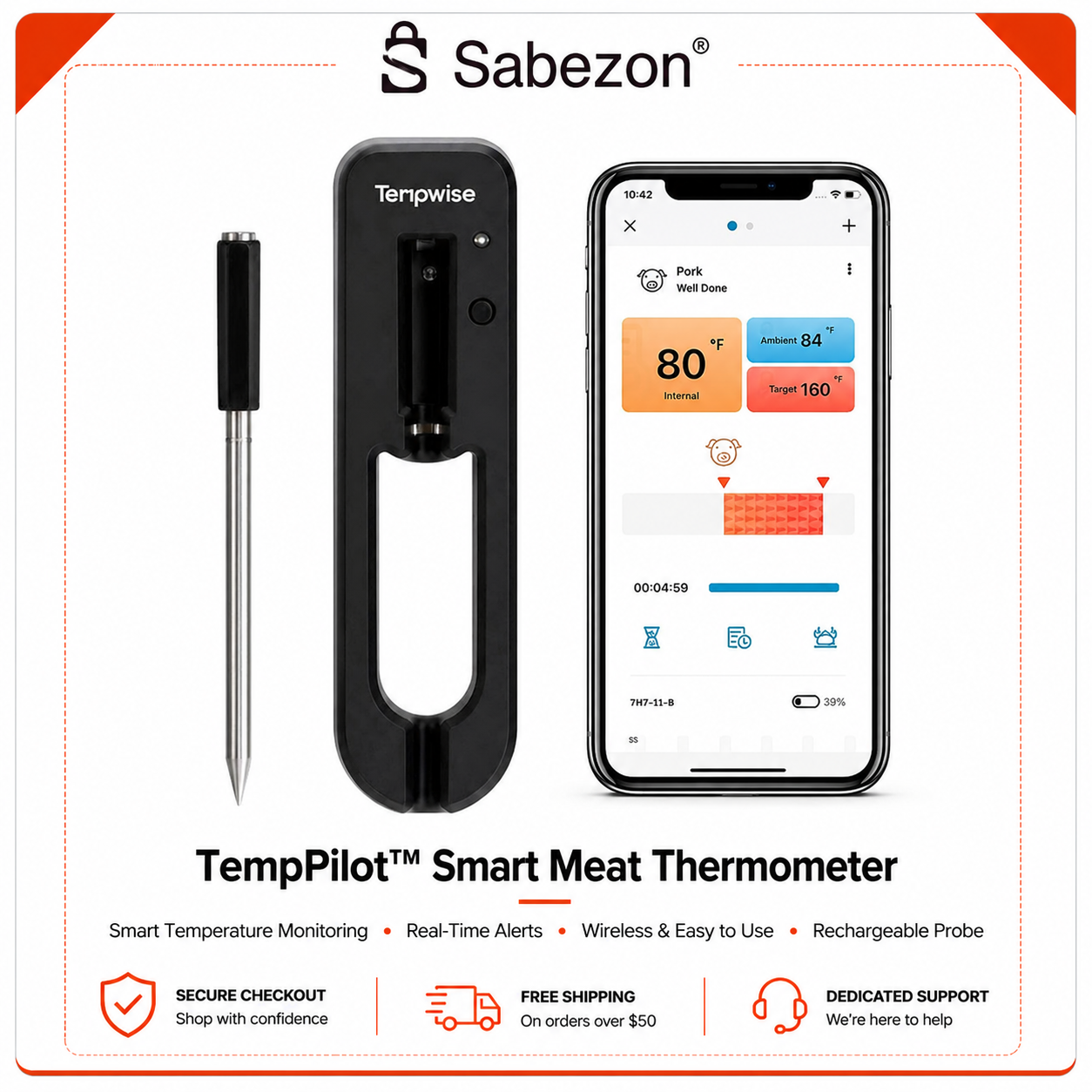



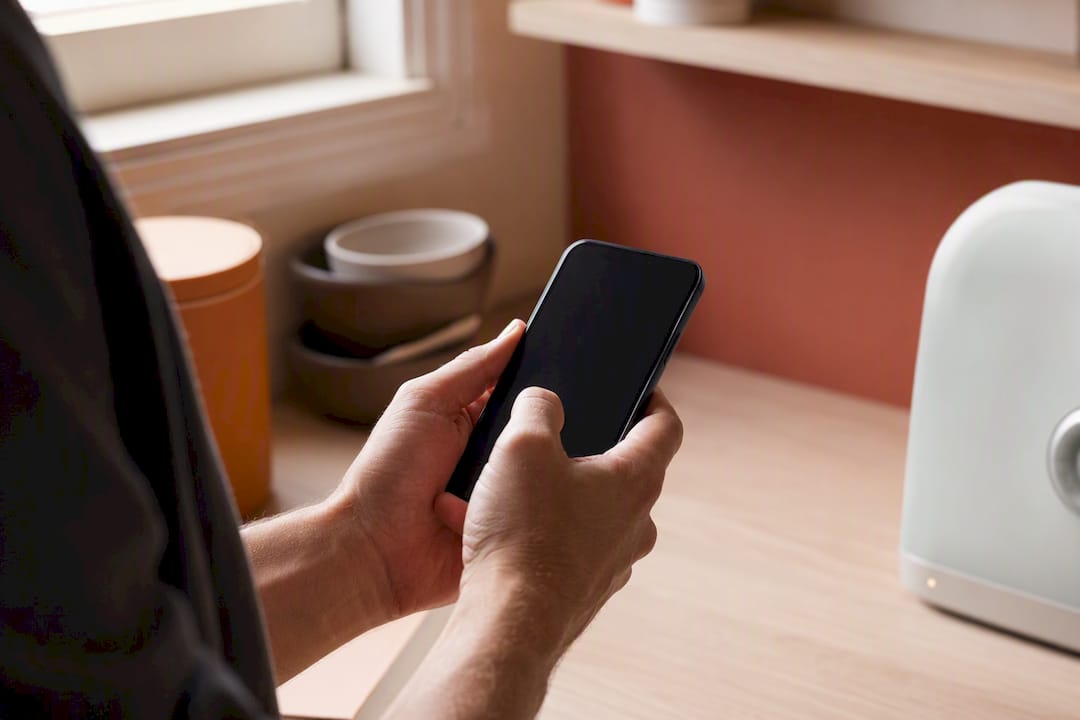
To connect smart devices to WiFi, grab your network name and password, open the device’s pairing method (app, QR code, or SoftAP), and choose the 2.4 GHz band unless the device supports 5 GHz. Then repeat for each device. For security, put your smart gadgets on a separate network using WPA3 encryption, and consider a Thread hub if you’re adding a lot of devices. Sabezon builds every device around this exact approach: simple pairing, secure defaults.
TL;DR:
- Most smart devices require 2.4 GHz WiFi for setup, especially if they are far from the router or battery-powered, while 5 GHz is faster but has shorter range.
- Connecting devices via QR code or app-based pairing reduces setup errors and improves security, unlike outdated WPS methods.
- Securing your network with WPA3, a strong password, and separate IoT networks limits potential security vulnerabilities from smart gadgets.
- Keep devices within one room of your access point or mesh node to ensure reliable connection and prevent disconnections caused by weak signals.
- Troubleshooting common issues involves verifying band compatibility, reducing interference, rebooting devices, and avoiding support tickets related to router settings.
Before you touch a single device, run through this prep list. It saves you from the most common setup headaches.
That last step matters more than it sounds. A device fresh out of the box is often running outdated firmware with known vulnerabilities patched months ago.
Pro Tip: Keep your phone on the same WiFi band as the device during setup. If your phone jumps to 5 GHz automatically and the device only speaks 2.4 GHz, pairing will fail every time, and you’ll think something’s broken when it isn’t.
Every smart gadget needs your network credentials one way or another. The method depends on what hardware is inside it.
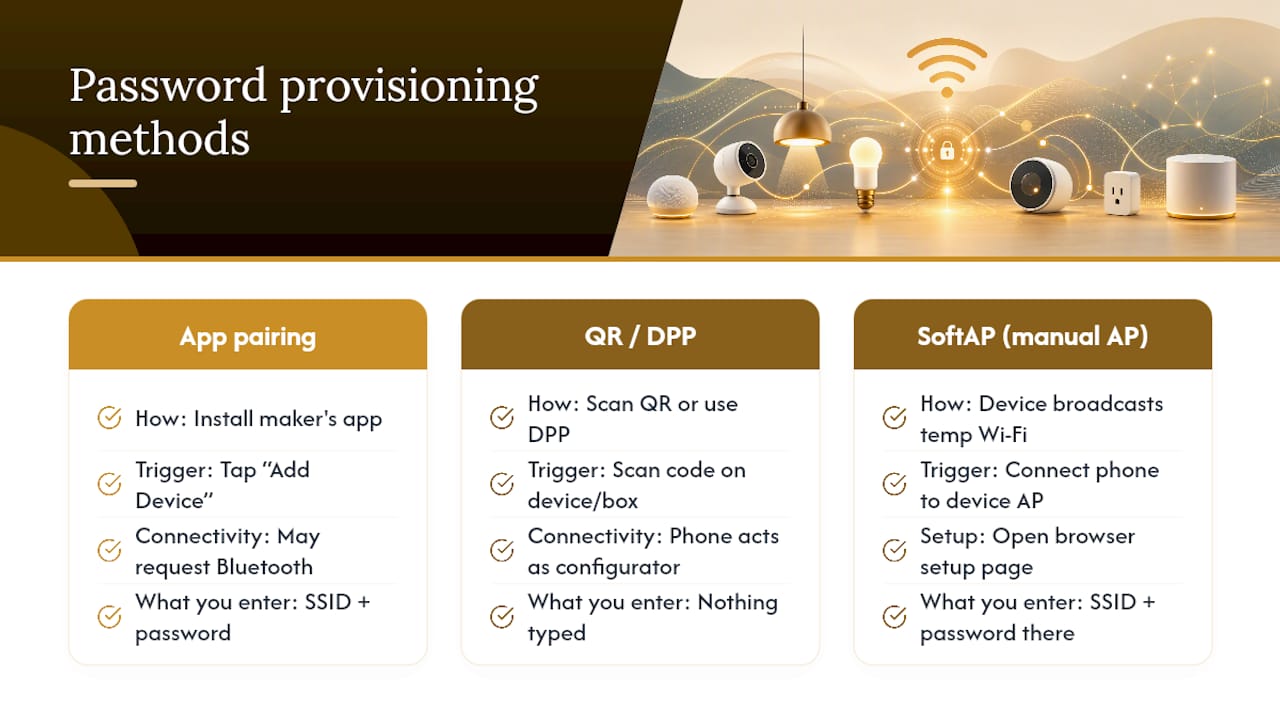
App pairing is the most common route. You install the manufacturer’s app, tap “Add Device,” enable Bluetooth if it’s requested, and type in your SSID and password directly. This is how most smart plugs, bulbs, and cameras work, and it’s straightforward enough for a first-timer.
QR code and DPP (Wi-Fi Easy Connect) skip the typing entirely. A configurator device, usually your phone, scans a QR code printed on the gadget or its box, and DPP transfers your credentials securely without you ever entering a password. It’s faster and reduces the chance of a fat-fingered typo locking you out of setup.
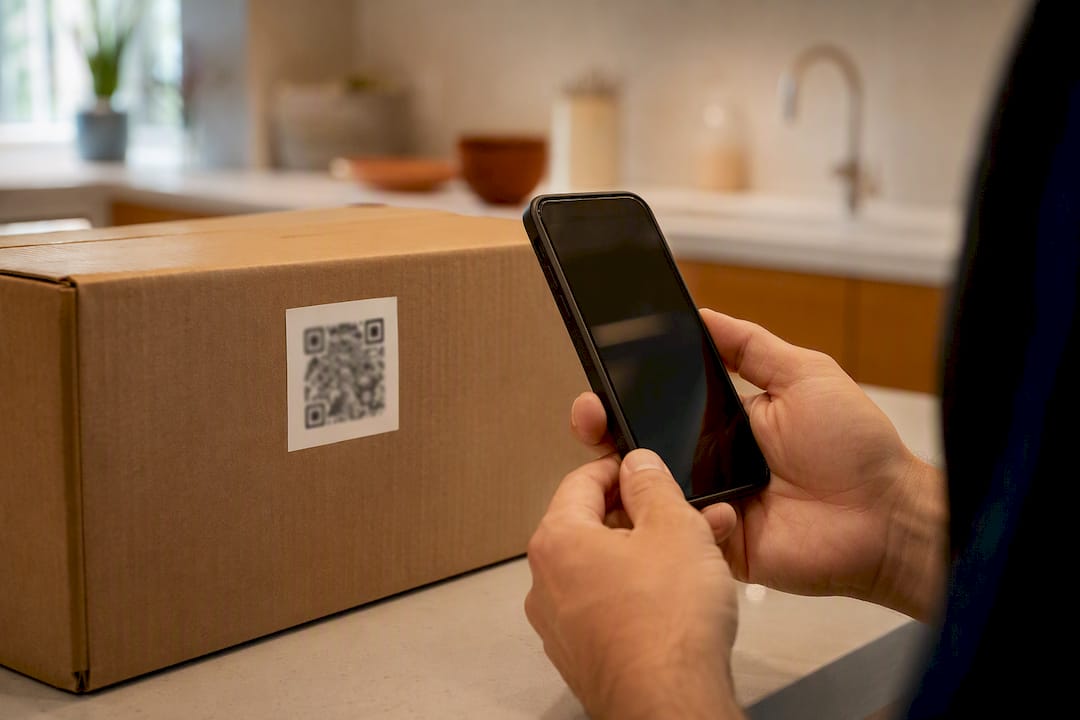
SoftAP or manual AP mode is the fallback for screenless devices. The gadget broadcasts its own temporary WiFi network, you connect your phone to that network, open a setup page in your browser, and enter your home network’s SSID and password there.
WPS still exists on many routers, but skip it. Its PIN-based handshake has known weaknesses, and DPP or app-based pairing accomplishes the same goal more securely.
If a device won’t enter pairing mode, a factory reset (usually a held button for 5 to 10 seconds) puts it back into discovery state so you can start fresh.
Basic connection steps stay consistent across almost every device type: find the network name, select it, enter the password, then repeat for the next gadget. Some devices add their own quirks. TP-Link’s Kasa smart plugs, for example, require 2.4 GHz and the official app to finish setup, with no exceptions.
Yes, and this is the step most people skip. A smart plug or camera with weak security can become a doorway for attackers to pivot toward your laptop or NAS drive sitting on the same network.
Here’s what actually protects your home:
One nuance worth knowing: a standard guest network often blocks devices from talking to each other, which breaks smart home automations. A dedicated IoT SSID handles isolation differently than guest mode, letting your devices communicate while still walling them off from your main network.
Skip MAC filtering. It sounds secure, but it mostly creates support headaches when you add a new device and forget to whitelist it, and determined attackers can spoof a MAC address anyway.
Pro Tip: Use a password manager to store your WiFi credentials and keep a simple list of device names and locations. When something acts up six months from now, you’ll thank yourself for not having to guess which “Smart Plug 3” controls the porch light.
Most smart home gadgets, from door sensors to smart plugs, run on 2.4 GHz because it travels farther and pushes through walls better than 5 GHz. Use 2.4 GHz for anything far from your router or anything battery-powered.
5 GHz moves data faster but loses range quickly, so it’s best reserved for cameras or hubs sitting close to your router.
When you’ve got 15 or 20 devices competing for bandwidth, things slow down. A few fixes work well:
A Thread border router acts as the bridge between your low-power sensors and your main network, and it noticeably extends battery life on locks and motion sensors that would otherwise ping WiFi constantly.
When a device times out during setup or drops off the network days later, the fix is usually simpler than it feels in the moment.
Router-side issues, not the device itself, cause most repeat disconnections: channel interference from a neighbor’s network, overly aggressive QoS settings, or a stray isolation toggle you flipped months ago and forgot about.
Pro Tip: Write down which fix worked. If channel interference caused the drop once, it’ll likely happen again after your next router reboot, and you’ll want the fix on hand instead of relearning it.
Sabezon builds every pairing card around the QR and app-based flow, not WPS, because it fails less often and takes less time to walk a reader through. Most support tickets we see trace back to two things: a phone stuck on 5 GHz during setup, or a device placed too far from the router or nearest mesh node.
For placement, keep WiFi-connected devices within roughly one room of your access point or mesh node for the most reliable connection. The Smart WiFi Garage Door Controller pairs through a Tuya-based app flow, and its support page walks through band requirements model by model.
A few sources back the guidance above and reward a closer read.
The AT&T Cyber Aware guide on securing smart devices covers network isolation tradeoffs in more depth than most manufacturer manuals. WIRED’s smart home setup guide explains band selection and congestion fixes well. For the technical side of QR-based provisioning, AWS documents Wi-Fi Simple Setup for managed device fleets.
Every design choice in a Sabezon device setup traces back to one question: what will actually go wrong in someone’s kitchen at 7 p.m. on a Tuesday? That’s why we lean on QR pairing over typed passwords and default to secure settings instead of asking new owners to find them buried in a menu. Clear documentation beats clever engineering every time a device ends up in a real home instead of a lab. If you get stuck on a specific model, check the smart home guide or reach out to Sabezon support directly.
— Tony
Sabezon designs every gadget around the setup steps covered above: QR pairing, 2.4 GHz compatibility, and secure defaults out of the box, so you’re not fighting your router just to get a plug online. If you’re also looking at other connected essentials, a pet and baby monitor with app control follows a similar pairing flow worth comparing.
Browse the Smart Home Tech collection to find devices that pair in minutes, not evenings, and check the home tech installation guide for model-specific setup notes before you buy. If you’re outfitting a kitchen instead, the Smart Kitchen collection uses the same secure pairing approach. Pick your first device, follow the checklist above, and you’ll have it online before your coffee gets cold.