Cart
0
Complete Your Setup




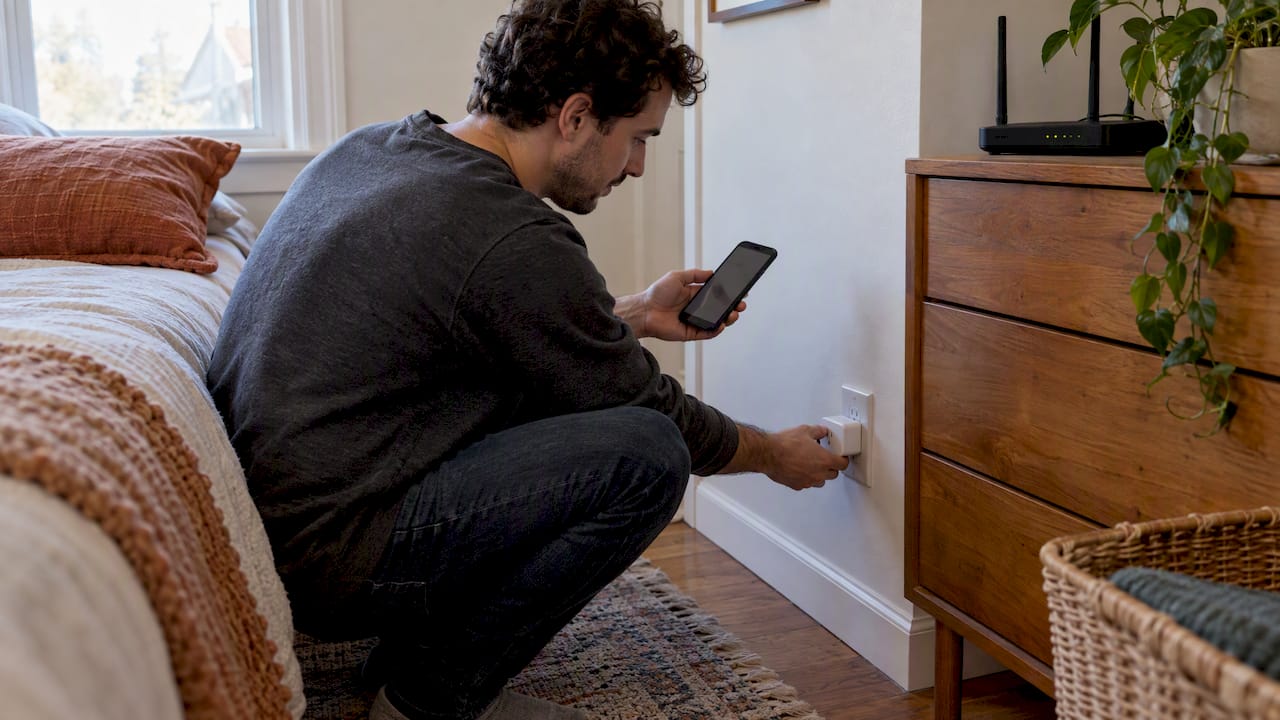
Most smart home gadgets only join Wi-Fi on the 2.4 GHz band, and most new routers push everything onto 5 GHz. That mismatch causes the majority of failed setups. The fix is simple: put your phone on 2.4 GHz for the few minutes of pairing, make sure your router allows it, and use the right pairing mode. This guide walks you through each step, then covers troubleshooting and security.
A robot vacuum, plug or camera sends small amounts of data. It does not need speed. It needs a signal that reaches the far corner of the house. The 2.4 GHz band does that better than the faster bands, which is why it remains the standard for most smart home devices.
The trade-off is crowding. The band has only three non-overlapping channels (1, 6 and 11), compared with up to 23 on 5 GHz, according to the same Wired guide. It is also shared with Bluetooth, Zigbee, microwave ovens and cordless phones. That is why a gadget that works fine in the living room can drop offline next to the kitchen.
In short: 2.4 GHz is the right band for these devices, but it needs a little care.
A few minutes of prep prevents most errors.
There are three common router setups. Find yours.
This is the easy case. You will see two networks, for example “HomeWiFi” and “HomeWiFi-5G”. Connect your phone to the one without the 5G label.
Many routers combine the bands under one name and decide for you which one a device gets. Plume’s support team notes that most 2.4 GHz-only devices connect fine to multi-band networks with a single name. When they don’t, the cause is often the app, not the network.
If pairing fails, try one of these:
Open the router’s app and look for an option such as a separate 2.4 GHz network or a guest network. If none exists, use the phone trick in the next step. Google also publishes steps for troubleshooting setup of 2.4 GHz devices on Google Home and Nest systems.
This is the step people skip, and it is the most common cause of a failed setup.
During pairing, many apps check that your phone is on the same 2.4 GHz network the device is about to join. If your phone is on 5 GHz or 6 GHz, the app may show a connection error even though the device could have joined. Wired describes this and suggests a simple workaround: move farther from the router so your phone drops to 2.4 GHz. Plume’s support article makes the same point: get the phone onto 2.4 GHz for the minutes of setup.
Here is how to do it:
Once the device shows as online in the app, you can switch your phone back to its usual network.
Many smart home apps offer two ways to connect. CE Smart Home’s guide describes both in its user reference guide. Your app may use different names, but the logic is the same.
| EZ Mode | AP Mode | |
|---|---|---|
| How it works | The device listens for your Wi-Fi details sent from the app | The device creates its own temporary hotspot, and you connect your phone to it |
| When to use | First attempt, default | When EZ Mode fails |
| Phone must be | On your 2.4 GHz home network | Connected to the device’s hotspot, then returned to home Wi-Fi |
| Typical device state | Fast-blinking light | Slow-blinking light |
In AP Mode, the hotspot is usually named something like “SmartLife-XXXX”. You connect your phone to it manually and the app passes your home Wi-Fi details to the device. The CE Smart Home article on putting devices in pairing mode shows how this works for plugs and switches. Blink patterns vary by brand, so confirm in your manual.
If you want a deeper walk-through of pairing methods, see our Wi-Fi controller setup guide.
Once paired, a few settings keep the device online.
Pick a clear channel. Channels 1, 6 and 11 don’t overlap, so one of them is usually best. The Wi-Fi Alliance points out that the band has only three channels and most Wi-Fi devices use it. Try a different one of the three if you live in an apartment building with many neighbors.
Use compatible security. CISA recommends WPA2-AES (PSK) or WPA3-Personal and says older options such as WEP, WPA and WPA2-TKIP should be avoided. Some older gadgets don’t support WPA3. TP-Link suggests setting the 2.4 GHz mode to 802.11 b/g/n/ax mixed with WPA2-PSK to keep older devices working.
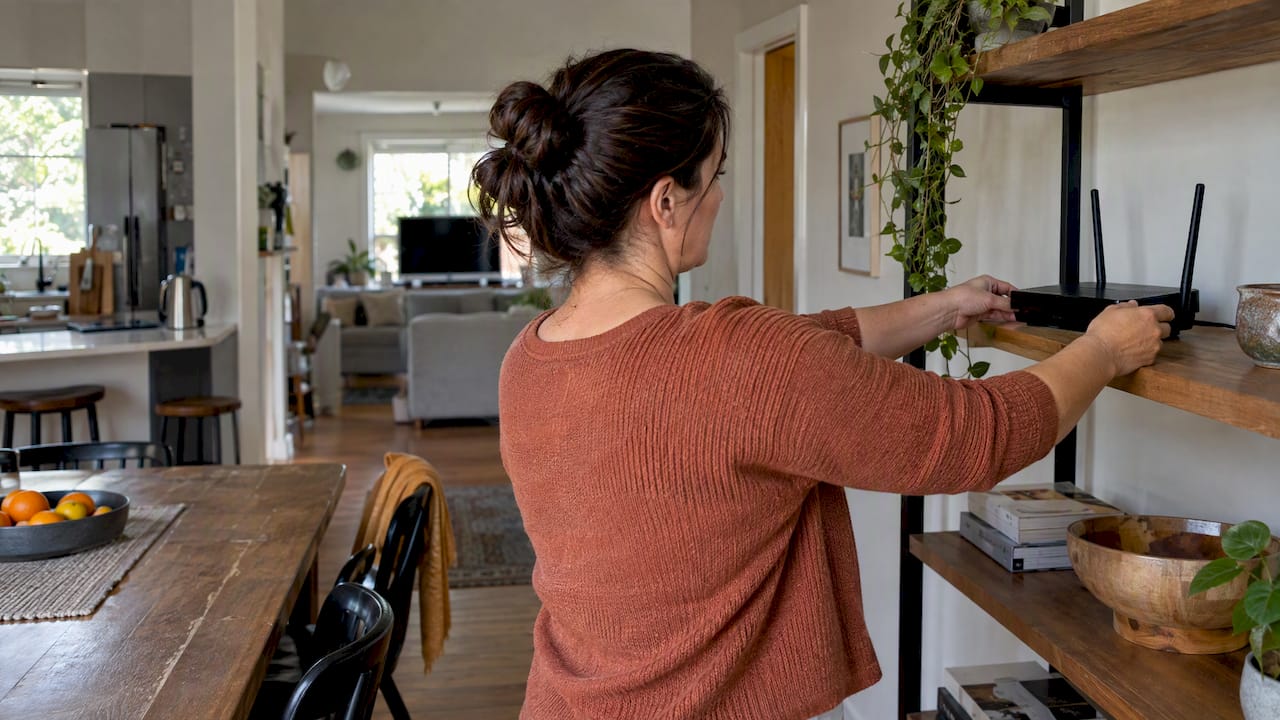
Mind the placement. Keep the router away from microwaves and cordless phone bases. If a device is far away, move the router or add an access point rather than moving the gadget to a weaker spot.
Work through these from top to bottom. Each takes a minute or two.
If the device appears in your router’s client list but is unreachable in the app, look for AP Isolation or Client Isolation, or guest mode settings. They stop wireless devices from seeing each other, and the device can’t talk to your phone or hub. Turn them off on the network where the device lives, or put your phone on the same network as the device. If you use a guest network on purpose, see the security section below, since some setups allow a phone on the main network to control devices on the guest one and others don’t.

Sometimes the gadget just has strict software. Plume’s support team notes that connection errors are often software limits in the device rather than a Wi-Fi fault. That’s good news: it means your network is probably fine and you only need to meet the app’s conditions during setup.
A smart plug or camera is a small computer on your network. CISA’s home Wi-Fi guide says smart devices can introduce vulnerabilities and recommends keeping them on a separate guest network so an insecure one can’t reach your computers and sensitive data.
A simple routine:
For a longer version, read our 5 steps to securely connect smart devices to Wi-Fi.
We sell smart home gadgets, so we hear about setup problems more than most. What we have noticed is that the device is rarely the problem. The pattern is nearly always the same: the phone is on 5 GHz, the router is merging bands, or the user is in a hurry and skips the pairing mode.
Our advice is to treat setup as a ten-minute job you do once, with a clear head:
Smart products should mean zero hassle. A little router prep is what makes that true. If you want the bigger picture, our home tech installation guide covers what to do from unboxing onward, and what a smart home is is a good start if you’re just beginning.
— Tony
If you’re adding to your smart home, browse our Smart Home Tech collection for gadgets like WiFi controllers and doorbell cameras, or see the full range of Smart Cleaning, Smart Kitchen and Smart Home Tech products. We curate products for simple setup, without technical complexity. Shop smarter, live better.
If your router uses separate names for each band, just join the 2.4 GHz one in your phone’s Wi-Fi settings. If the bands share one name, turn off the 5 GHz radio on the router temporarily, or move farther from the router until the phone switches. Wired recommends the distance trick as a reliable workaround.
Use channel 1, 6 or 11. These are the three channels that don’t overlap on the band. Pick whichever has the least traffic from neighbors, and test one at a time if a device drops offline.
Often yes. Many routers use band steering and decide for each device, and TP-Link notes that this setting is enabled by default. That convenience can get in the way during smart device setup, so turn it off or split the bands if pairing fails.
The router may be isolating wireless devices from each other. Check for AP Isolation, Client Isolation or guest mode, and turn it off for the network your device uses, or put your phone on that same network.
Usually, yes. Plume’s support notes that most 2.4 GHz-only devices connect without trouble on networks that share a name across bands. If yours doesn’t, get your phone onto 2.4 GHz and try AP Mode.