Cart
0
Complete Your Setup




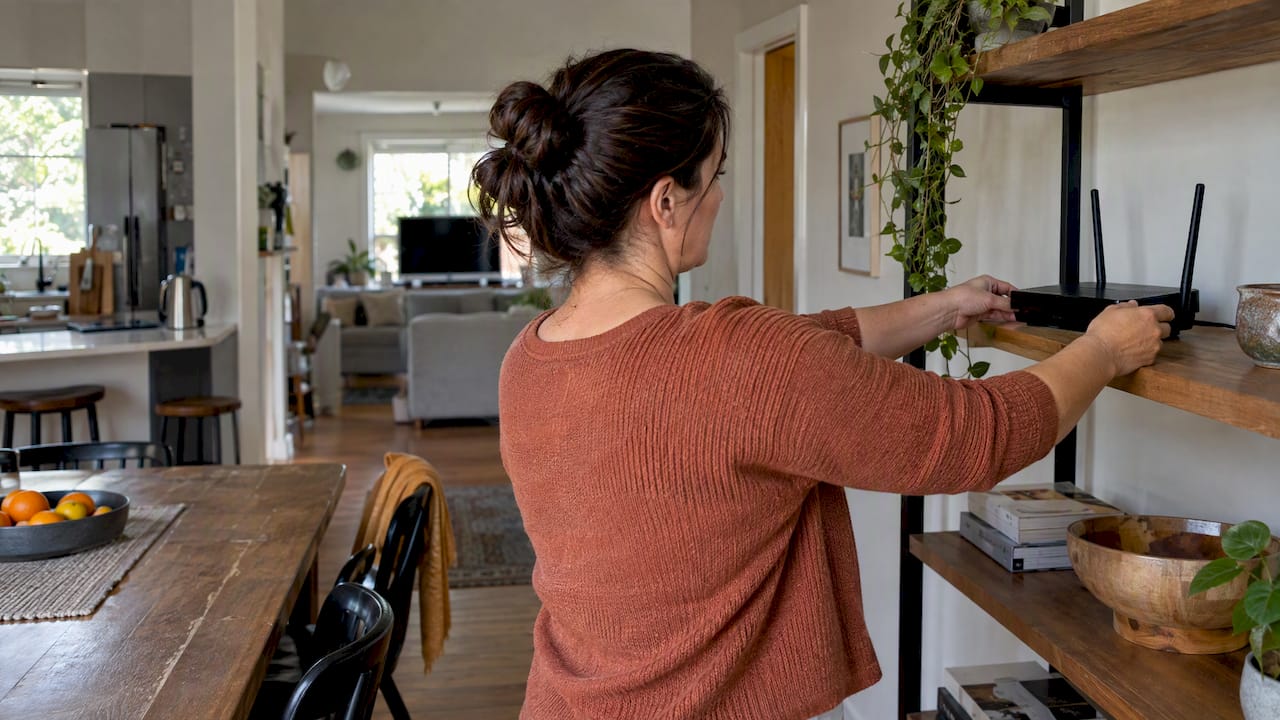
Yes, smart devices can cause Wi-Fi interference, and they can also suffer from it. Most of the trouble comes from one place: the crowded 2.4 GHz band, where your router, plugs, cameras, sensors, speakers, and even your microwave all compete for the same airtime. The fix is rarely a new router. It is usually a mix of better channel settings, smarter placement, and moving a few devices off Wi-Fi.
This guide shows you how to find the cause, fix it in an afternoon, and set up your home so new gadgets don’t make things worse. Smart Products. Zero Hassle.
Wi-Fi is radio. Your router sends and receives signals on set channels within a frequency band. Interference happens when something else uses the same band at the same time, or when walls and objects weaken the signal until it gets drowned out by noise.
There are two kinds in a typical home:
The second kind is easy to blame. The first is far more common in homes packed with gadgets.
Routers have moved on to 5 GHz and newer bands. Many affordable smart gadgets have not. 2.4 GHz is still the default band for smart home devices, so each new plug, bulb, or camera adds to the same crowded space.
Two things happen as you add devices.
That last point matters. Your sensors are rarely the cause of slow Wi-Fi. They are usually the victim. Your phone, TV, and laptop traffic is what crowds them out.
The lesson: more devices does not automatically mean a smarter home. A well-planned home with 20 devices beats a messy one with 40.
Before changing anything, confirm the symptoms. Interference tends to look like this:
Apple’s guidance on wireless interference lists similar symptoms, including disconnects and poor performance on Wi-Fi and Bluetooth devices.
IT teams also make a useful point. Before you call your internet provider, look at your own space first. University of Colorado’s IT office explains that obstructions like concrete walls and competing radio transmissions are common culprits for slow or dropped connections.
Walk through the house and list every connected gadget by room. Look for clusters. A smart speaker, a camera, and a hub sitting side by side on one shelf concentrate traffic in one spot. Spreading devices around the home reduces localized congestion.
Place your router in a central, open spot. Skip the kitchen. Appliances and large metal surfaces can interfere with the signal, and a microwave sits right on the 2.4 GHz band. Keep the router off the floor and out of cabinets.
Also check cables. Unshielded power, speaker, or video cables can radiate noise. Dell suggests keeping them at least 3 feet from your router and wireless devices.
On 2.4 GHz, only channels 1, 6, and 11 do not overlap. If your router sits on channel 3 or 8, it collides with neighbors on two channels at once.
This works better than restarting the router again and again. A restart clears a stuck state. It does not fix a crowded channel.
If your router is dual-band, move devices that can use 5 GHz there. Phones, laptops, streaming sticks, and game consoles usually can. That frees the 2.4 GHz band for small gadgets that need it. Apple also notes that connecting more devices to 5 GHz helps cut interference.

One catch: many 2.4 GHz-only gadgets will not move to 5 GHz, even if your router tries to steer them. Splitting the bands into two network names makes setup simpler. Put the gadgets on the 2.4 GHz name and everything else on 5 GHz. Some devices only pair when your phone is on 2.4 GHz, so connect your phone to that network during setup. Our guide to connecting smart devices to Wi-Fi walks through it.
Fixed devices that move lots of data, like security cameras and printers, work best on a wire. Wired options such as Ethernet or Power over Ethernet take them off the air entirely. Recent IoT research reaches a similar conclusion: prioritize wired backhaul for essential infrastructure and leave the limited 2.4 GHz space to small, mobile devices.
You do not need to wire everything. Start with the one or two heaviest users.
Run the same tasks that failed before. If the doorbell camera still stutters at dinner time, check the microwave and cordless phone next.
| Source | Why it interferes | What to do |
|---|---|---|
| Microwave oven | Emits energy in the 2.4 GHz range | Move the router and 2.4 GHz devices away from the kitchen |
| Wireless cameras and baby monitors | Use 2.4 GHz | Move to a wired or 5 GHz option where possible |
| Older cordless phones | Use 2.4 GHz | Replace or place far from the router |
| Neighbors’ routers | Same or overlapping channels | Pick channel 1, 6, or 11 with the least traffic |
| Cable bundles | Can radiate noise | Keep cables at least 3 feet away |
| Concrete and metal | Block or weaken signal | Place the router centrally, consider a mesh node |
| Many gadgets on one channel | Airtime contention | Spread devices, use 5 GHz, wire fixed devices |
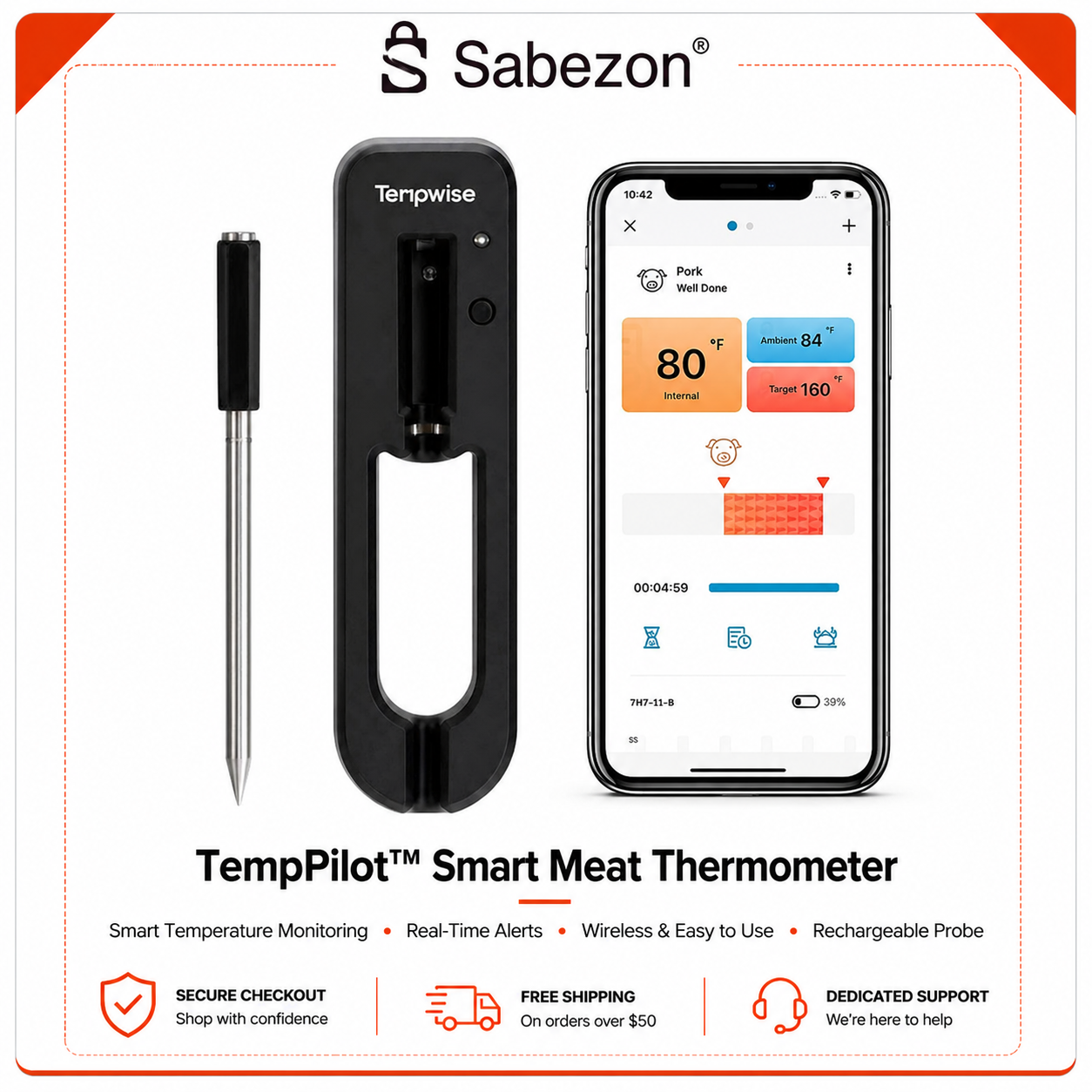
Sometimes a gadget fails because the signal is weak, not noisy. Walls, floors, and metal all cut range. A wireless meat thermometer is a good example: a number printed on the box can shrink in real use, and we cover that in our piece on wireless meat thermometer range in a smoker.
Here is a simple test. Stand next to the router with the gadget. If it works there but fails farther away, it is a range problem. Add a mesh node or move the router. If it fails even close to the router at certain times of day, suspect interference or congestion.
We sell smart home gadgets, so we hear this question a lot: “Is it the product, or is it my Wi-Fi?” Often it is the network. A gadget that works perfectly in one house can struggle in another with a crowded channel.
That is why we focus on simple setup. We curate products that are easy to pair, and we want you to feel confident before you press the button. Setup is where most Wi-Fi issues first show up. Phone on the wrong band, a router that merges 2.4 and 5 GHz into one name, a gadget placed at the far edge of coverage. These are small things with a big effect.

Our advice is plain. Add devices in steps, not all at once. Test each one in its final spot before you mount or hide it. Keep the router central. Put heavy-traffic devices on 5 GHz or a wire. And when a new gadget joins, check the others still work. Tested. Proven. Loved.
If you want a calm walkthrough of pairing, start with our Wi-Fi controller setup guide. For a bigger picture, see what a smart home really is.
— Tony
If you are adding to your smart home, choose devices you can set up in minutes and place where signal is strong. Our Smart Home Tech collection covers connected everyday gadgets. If cleaning and kitchen routines are next, browse Smart Cleaning and Smart Kitchen. Shop Smarter, Live Better.
Before you buy, check which Wi-Fi band the product supports and make sure the spot you plan to use it in has good signal.
A few habits keep interference from coming back.
Low-power protocols use little energy, which is great for batteries. It also means they lose when a Wi-Fi router shouts on the same band. Research on a Zigbee apartment deployment notes that Zigbee shares the unlicensed 2.4 GHz band with other wireless technologies. If your sensors keep dropping, keep them well away from the router and from busy Wi-Fi gear.
Search results for this topic often show “Wi-Fi jammer” and “signal blocker” products. Do not buy one. The FCC says it is generally illegal to operate, market, or sell jammers in the U.S., and they can disrupt cell phones, GPS, and 911 access.
If you think someone is deliberately jamming your signal, the signs are a sudden loss of wireless service in places that normally have good coverage, or failures limited to one small area. You cannot block a jammer yourself. Report it through the FCC’s official interference complaint process, described on the FCC jammer enforcement page. In nearly every home case, though, the cause is ordinary: a crowded channel, a microwave, or a router in a bad spot.
Microwave ovens, wireless cameras, baby monitors, and older cordless phones are common sources because they emit energy in the 2.4 GHz range. Neighboring routers on the same channel also interfere. So do large metal surfaces and thick walls, which weaken the signal.
Yes, in a way. Each device on 2.4 GHz uses airtime, and a large group can slow the whole band. Still, low-power gadgets like Zigbee sensors are usually hurt more by Wi-Fi than the other way around. Spread them out and move heavy users to 5 GHz or a wire.
Use a free Wi-Fi analyzer app to see which channels nearby networks use. Then test speed and stability near the router and in the problem room, and note the time of day. If drops line up with the microwave or with peak use, you have your lead.
Most smart gadgets only support 2.4 GHz, so they have no choice. Put phones, laptops, and streaming gear on 5 GHz, and keep 2.4 GHz for the gadgets that need it. Set the 2.4 GHz channel to 1, 6, or 11.
No. You can’t block one, and owning or selling a jammer is generally illegal in the U.S. If you suspect one is nearby, file a report with the FCC.